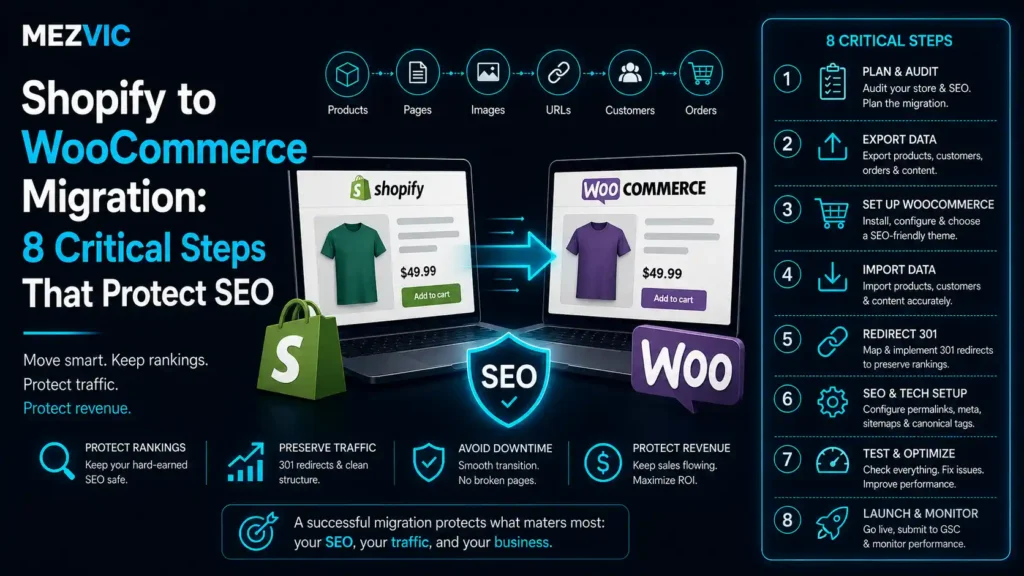
Most Shopify to WooCommerce migration horror stories come down to one decision made in the first ten minutes.
Somebody accepts WooCommerce’s default URL structure, every product on the site changes address, and a store that took four years to rank starts again from a redirect map nobody has built yet.
Here is the part almost nobody tells you: you do not have to change your product URLs at all.
WooCommerce lets you set the product and category bases to whatever you like. Set them to match Shopify and your product pages keep the exact same addresses they had before.
That single setting removes most of the SEO risk from a Shopify to WooCommerce migration. The other seven steps below deal with what is left.
In this guide, you will learn:
- The permalink setting that makes most redirects unnecessary
- Which URLs always need redirecting, and which never do
- What Shopify will not export, in Shopify’s own words
- What Google actually says about traffic during a move
- The order of operations that keeps the old store safe
Key Takeaways
- Set WooCommerce’s product base to
productsand your product URLs match Shopify exactly. - Do the same with the category base and
collections, and category URLs match too. - Shopify’s
/productsand/collectionspaths are fixed and cannot be changed, so the mapping is completely predictable. - Shopify pages and blog posts always need redirects, because WordPress cannot reproduce those paths natively.
- Google recommends 301 or 308 server-side redirects for a move with URL changes.
- Keep those redirects for at least a year, and indefinitely if you can.
- The Change of Address tool does not apply when you stay on the same domain.
- Google says a medium site takes a few weeks for most pages to move in its index.
- Ranking fluctuations during recrawling are expected, not a sign you broke something.
- Shopify redirects only fire on broken URLs, so build your redirects on WordPress instead.
- Export everything before you cancel anything. Reviews and meta descriptions are the usual casualties.
- Google suggests moving during a natural traffic dip rather than your busiest week.
The URL Map That Decides Everything
Shopify’s URL structure is rigid, which sounds like a limitation and is actually a gift to anyone planning a Shopify to WooCommerce migration. Rigid means predictable, and predictable means you can match it deliberately.
Shopify states plainly that you cannot redirect URLs using its fixed paths of /products, /collections and /collections/all. Those prefixes are locked, on every Shopify store on earth.
So here is what your addresses look like before and after, and what you can do about each one.
| Content | Shopify URL | WooCommerce default | What to do |
|---|---|---|---|
| Product | /products/blue-mug | /product/blue-mug | Change the base to products. No redirect needed. |
| Category | /collections/mugs | /product-category/mugs | Change the base to collections. No redirect needed. |
| Page | /pages/about-us | /about-us | Redirect. WordPress has no /pages/ prefix. |
| Blog post | /blogs/news/post-title | /post-title | Redirect. The structures cannot match. |
| Shop index | /collections/all | /shop | Redirect this one page. |
| Cart and checkout | /cart, /checkout | /cart, /checkout | Already match. Nothing to do. |
Fixed Shopify paths confirmed in Shopify’s URL redirect documentation. WooCommerce bases are configurable under Settings, then Permalinks.
Look at the first two rows again, because that is the whole argument.
On a 900-product store, accepting WooCommerce’s defaults means building and maintaining 900 redirects. Changing one setting means building zero.
Redirects are not free either. Every one is a hop, a maintenance burden and a chance for somebody to break something in two years when they tidy up.
Reducing the redirect count is the cheapest win available in any Shopify to WooCommerce migration, and it costs one setting.
The rows that genuinely need work are pages and blog posts, and there are usually dozens of those rather than hundreds.

The 8 Steps, in Order
Order matters more than speed in a Shopify to WooCommerce migration. Doing step six before step three is how stores lose a month of rankings.
8 steps that protect your rankings
Follow the path left to right, then back again. Nothing goes live until step six.
Nothing is switched over until step seven. Everything before that happens on a staging site nobody can see.
Step 1: Crawl and Record the Old Site First
You cannot protect what you have not written down, and every Shopify to WooCommerce migration should start here.
Before you touch anything, crawl the live Shopify store and save the result somewhere permanent. This becomes your reference for the entire project and your proof if something goes missing.
Capture at minimum:
- Every indexable URL, including pages you forgot existed.
- Titles and meta descriptions for each one.
- H1s and image alt text, which are easy to lose silently.
- Your top 50 pages by organic traffic, from Search Console.
That last one is the priority list. If something goes wrong after launch, those are the pages you check first and fix first.
Also export a full Search Console performance report while you still have clean pre-migration data. Comparing after the fact is impossible if you never recorded before.
The crawl side of this is ordinary technical SEO work, and it is worth doing to the same standard you would on any live site.
Run a proper site audit at this stage too. Migrating existing problems into a new platform just gives them a new address.
Step 2: Export Everything Before You Cancel Anything
Obvious advice that people still get wrong, usually because the Shopify bill arrives mid-migration and somebody cancels to save a month.
Keep the Shopify store alive and paid until the new site has been live and stable for at least a fortnight.
Export in this order:
- Products as CSV, including variants and inventory.
- Customers as CSV, minus passwords, which never transfer.
- Orders as CSV, for your records and your accountant.
- Blog content, which usually means copying it or using a migration tool.
- Images at full resolution, not the compressed versions on the page.
- Reviews, which depend entirely on which app you used.
Reviews are the item that catches everyone. They usually live inside a third-party app rather than Shopify itself, so exporting your Shopify data does not export them.
Find out where yours live before launch day, not after. Four years of accumulated social proof is not something you want to discover is missing on a Tuesday afternoon.

Step 3: Match the Permalinks Before You Import Anything
This is the step that saves a Shopify to WooCommerce migration hundreds of redirects, and it takes about ninety seconds.
In WordPress, go to Settings, then Permalinks. WooCommerce adds its own section there with a product permalink base and a product category base.
Set the product base to products rather than the default product. Set the category base to collections rather than product-category.
That is it. Your product at /products/blue-mug on Shopify stays at /products/blue-mug on WooCommerce.
Same URL, same rankings, no redirect, no lost link equity, nothing for a crawler to be confused about.
Do this before importing, not after. Changing permalink structure once thousands of products exist is a much bigger operation than changing it on an empty site.
One caveat worth knowing. If you genuinely prefer WooCommerce’s naming for the long term, you can still change it later. Just do the migration on matched URLs first and treat a restructure as a separate project with its own redirect map.
Never combine a platform change and a URL change in the same week. If something goes wrong you will not know which decision caused it, and that is the worst position to debug from.
If the new store also needs custom templates or functionality, keep that separate too. WordPress development work belongs before or after the move, never during it.
Step 4: Import, Then Check the Slugs Individually
The permalink base only helps if the slug after it also matches. This is where a Shopify to WooCommerce migration quietly breaks its own plan.
Shopify calls the last part of the URL the handle. WordPress calls it the slug. They are the same thing, and a careless import will happily invent a new one.
The three ways slugs get mangled:
- The importer generates from the title instead of using the handle column, so “Blue Mug, 350ml” becomes
blue-mug-350mland no longer matches. - Duplicates get a suffix. Import twice after a failed first attempt and you get
blue-mug-2everywhere. - Special characters get stripped differently by the two platforms, which mostly bites on accented or non-English product names.
The duplicate suffix is the nastiest because everything looks fine. The products are there, the pages load, the store works, and every URL is silently wrong.
Verify properly: export the new site’s product URLs, put them next to your step-one crawl in a spreadsheet, and compare the two columns. Any row that does not match exactly needs fixing or redirecting.
Spot-checking ten products is not verification. It is a way of feeling reassured while missing the eleven hundred that broke.
Product data quality matters as much as the URLs here, which is the same discipline behind good product listing work on any channel.
Step 5: Rebuild Your Titles and Meta Descriptions
Here is a gap in every Shopify to WooCommerce migration that surprises people who did everything else right.
Your Shopify SEO titles and meta descriptions are not ordinary product fields. They will not necessarily come across in a product CSV, and if nothing writes them into WordPress, WordPress will generate its own.
You end up with a technically perfect migration where every page has a title nobody wrote, usually the product name and the site name and nothing else.
This is exactly why step one told you to record them. That crawl is now your source of truth.
What to move across:
- SEO titles for products, collections, pages and posts.
- Meta descriptions, particularly on your top traffic pages.
- Image alt text, which affects both accessibility and image search.
- Canonical settings, so nothing accidentally points back at Shopify.
An SEO plugin like Rank Math will import titles and descriptions in bulk from a spreadsheet, so this is tedious rather than difficult.
While you are there, check your structured data survived. Product schema drives rich results, and a store that loses its price and availability markup loses visible search features overnight. Getting schema markup right on the new platform is part of the migration, not a follow-up task.
The wider on-page work belongs here too, and it is the same discipline covered in WooCommerce SEO once the store is live.
Step 6: Build the Redirect Map on WordPress, Not Shopify
There is a detail in Shopify’s documentation that changes where redirect work has to happen during a Shopify to WooCommerce migration.
Shopify states that you can only redirect from broken URLs. If the URL still loads a valid page, the redirect simply will not fire.
So you cannot pre-build redirects on Shopify while the store is still live. And once you point your domain at WordPress, Shopify is out of the request path entirely and its redirects are irrelevant anyway.
All redirects live on the new site. Either in a redirect plugin or, better for performance, at the server level.
Google’s guidance on a move with URL changes is specific: use server-side permanent redirects, 301 or 308.
And keep them. Google says to hold redirects for at least a year, and suggests keeping them indefinitely from a user’s point of view.
That last point deserves emphasis because redirect maps get “cleaned up” by well-meaning people. A year is the floor, not the target.
What actually needs a redirect, assuming you matched the permalinks:
- Every
/pages/*URL - Every
/blogs/*URL /collections/allto your shop page- Any product whose slug changed during import
- Any product you discontinued, pointed at the closest live alternative
Two rules that keep the map healthy. Redirect to the most relevant page, not the homepage, because a mass redirect to the homepage is treated as a soft 404 and helps nobody. And avoid chains, so map old straight to final rather than old to interim to final.
Then test every single one before launch, on staging, using the actual list from step one. This is dull work and it is the entire insurance policy.
A full SEO audit at this point catches the redirects you missed while there is still time to fix them quietly.
Step 7: Launch Into a Quiet Week
Google’s own advice on timing a Shopify to WooCommerce migration is refreshingly practical: if your traffic is seasonal or dips on certain weekdays, move during the dip.
So not the week before Black Friday. Not during your biggest campaign. Ideally a Tuesday in your quietest month, with the whole team available and nothing else booked.
Launch day, in order:
- Point the domain at the new site.
- Confirm the redirects fire on the live domain, not just staging.
- Check the site is indexable. Staging sites are usually blocked, and that setting travels.
- Submit the new sitemap in Search Console.
- Place a real test order with a real card.
- Keep Shopify paid for at least another fortnight.
Step three on that list is the single most common catastrophic mistake in any migration. A staging site carries a “discourage search engines” setting, somebody forgets it, and the beautiful new store is invisible for three weeks.
Check it twice. Then have somebody else check it.
Launch day is also when speed becomes your problem rather than Shopify’s, so have performance work planned rather than discovered.
One thing you do not need: the Change of Address tool in Search Console. That is for moving to a different domain. If you are keeping the same domain and only changing platform, it does not apply to you.
Step 8: Watch Everything for 30 Days
A Shopify to WooCommerce migration is not finished at launch. It is finished when the index has caught up, and that takes weeks rather than days.
Google is direct about this. You may see ranking fluctuations while it recrawls and reindexes, and for a medium-sized site most pages take a few weeks to move across in the index. Larger sites take longer.
The dip is expected. The recovery is the test
A well-executed migration usually dips and recovers. A broken one keeps falling. Knowing the difference stops you panicking in week two.
Illustrative shapes rather than measured data. The timing guidance comes from Google’s site move documentation.
That distinction is the whole reason to watch rather than react.
A dip in week one means Google is working. A dip that is still deepening in week five means something is genuinely wrong, and it is almost always redirects, indexability or slugs.
Check weekly, in this order: Search Console coverage errors, 404s in your server logs, your top 50 pages from step one, then rankings.
Rankings last, deliberately. They are the slowest signal and the most emotionally distracting, and the technical errors above them are what actually cause the problem.
Core Web Vitals are worth watching in the same window, because a slower new stack can suppress recovery on its own. Core Web Vitals optimisation is the narrow version of that job.

What Transfers, and What Does Not
Set expectations before you start. The middle column is where Shopify to WooCommerce migration budgets get eaten.
| Moves across cleanly | Needs deliberate work | Usually lost |
|---|---|---|
| Products and variants | SEO titles and meta descriptions | Customer passwords |
| Product images | Image alt text | App-specific data |
| Customer records | Reviews, depending on the app | Shopify theme design |
| Order history | Blog posts and their images | Discount code history |
| Inventory counts | Redirects for pages and posts | Abandoned cart data |
| Product descriptions | Structured data markup | Shopify app subscriptions |
Customer passwords never transfer between platforms. Plan a password reset email, and warn customers before it lands rather than after.
The password row is worth planning properly, because it is the one your customers actually feel.
An unexplained “reset your password” email from a shop looks exactly like a phishing attempt. Tell people it is coming, from an address they recognise, before you send it.
Anything that interrupts a returning customer is a conversion problem as much as a technical one, which is where conversion optimisation and migration planning overlap.
The Mistakes That Actually Cost Rankings
In rough order of how much damage they do to a Shopify to WooCommerce migration.
- Launching with search engines discouraged. The staging setting nobody unticked. Costs weeks.
- Accepting default permalinks. Turns a zero-redirect migration into a thousand-redirect one.
- Redirecting everything to the homepage. Treated as a soft 404 and helps nobody.
- Cancelling Shopify too early. Removes your ability to check anything against the original.
- Migrating during peak season. Every problem costs more in November than in February.
- Forgetting internal links. Old absolute URLs in your own content quietly point at dead pages.
- Ignoring speed on the new stack. WordPress hosting is your responsibility now, in a way Shopify’s never was.
That last one is the delayed cost people underestimate. Shopify handled hosting, caching and scaling invisibly. On WooCommerce those become decisions you own, along with updates and backups that WooCommerce maintenance exists to cover.
A store that migrates successfully and then runs on cheap shared hosting has traded a platform fee for a performance problem. Our guide to fixing a slow WooCommerce site covers what that actually involves, and it is worth reading before launch rather than after.
Check the new build against real numbers with our bulk PageSpeed checker while it is still on staging and nothing is at stake.
Should You Migrate at All?
Worth asking honestly, because a Shopify to WooCommerce migration is not always the right answer and we would rather say so.
| Move to WooCommerce when | Stay on Shopify when |
|---|---|
| You need custom functionality Shopify apps cannot do | Your team has no technical support at all |
| App subscriptions have become a serious monthly cost | You are happy with the current setup |
| Content and SEO are central to how you grow | You sell mostly through paid social, not search |
| You want to own your data and your stack | You do not want to think about hosting, ever |
| Your catalogue needs complex product structures | Your catalogue is simple and stable |
Migrating because you are annoyed with Shopify is not a strategy. Migrating for a capability you can name is.
If you cannot finish the sentence “we are moving so that we can…”, the honest answer is probably to stay where you are and spend the budget on growing the store you already have.
If you can finish it, the move is very manageable. The eight steps above are not difficult. They are just unforgiving about order.
Whichever platform you land on, the growth work afterwards is the same. Our guide to managing a store properly applies to both, and eCommerce SEO is what turns a stable migration into a growing one.
Frequently Asked Questions
Will a Shopify to WooCommerce migration hurt my SEO?
A Shopify to WooCommerce migration does not hurt SEO if the URLs are handled properly. Match WooCommerce’s product and category bases to Shopify’s fixed paths and most pages keep their exact addresses, so there is nothing for rankings to be lost against. The damage in bad migrations comes from changed URLs without redirects, not from the platform change itself.
Can I keep my Shopify URLs on WooCommerce?
For products and collections, yes. Set the product permalink base to products and the category base to collections under Settings, then Permalinks. Pages and blog posts cannot match, because WordPress has no /pages/ or /blogs/ prefix, so those need redirects.
What redirect type should I use?
Google recommends server-side permanent redirects, specifically 301 or 308, for a site move with URL changes. Point each old URL straight at its final destination rather than through an interim URL, and avoid sending everything to the homepage.
How long should I keep the redirects?
Google says to keep them for as long as possible, and at minimum one year. From a user’s point of view it suggests keeping them indefinitely, since old links live on in emails, bookmarks and other people’s websites long after search has caught up.
Do I need the Change of Address tool?
No, not if you are keeping the same domain. The Change of Address tool in Search Console is for moving between domains. A platform change on the same domain does not use it.
Can I set up the redirects inside Shopify before I move?
No. Shopify states that redirects only work from broken URLs, so a redirect on a page that still loads will not fire. Once your domain points at WordPress, Shopify is out of the request path anyway, so all redirects belong on the new site.
How long does it take Google to reindex after a migration?
After a Shopify to WooCommerce migration, Google states that a medium-sized website can take a few weeks for most pages to move across in its index, and that larger sites take longer. Expect ranking fluctuations during that period while Google recrawls and reindexes.
Is a traffic drop after migration normal?
A temporary dip is normal and Google says to expect fluctuations while it recrawls. What is not normal is a decline that keeps deepening past the first few weeks. That usually means broken redirects, an indexability setting left on, or slugs that changed during import.
When is the best time to migrate?
Run a Shopify to WooCommerce migration during a natural traffic dip. Google’s own guidance is that if your traffic is seasonal or falls on certain weekdays, you should move during those quieter periods. Avoid peak trading seasons entirely, because every problem costs more when volume is high.
Do my product reviews transfer?
It depends entirely on which review app you used, because reviews usually live in a third-party app rather than in Shopify itself. Find out where yours are stored and whether they can be exported before you commit to a launch date.
What happens to customer accounts and passwords?
Customer records transfer, passwords do not, because they are stored as hashes that cannot move between platforms. Plan a password reset flow and warn customers it is coming, since an unexpected reset email from a shop looks exactly like a phishing attempt.
When can I cancel my Shopify plan?
Once the new site has been live and stable for at least two weeks, and you have verified your redirects, orders, emails and top pages. Keeping Shopify running costs one more month and preserves your ability to check anything against the original.
The Bottom Line
A Shopify to WooCommerce migration is not risky because platforms are different. It is risky because URLs change, and URLs are what your rankings are attached to.
So take the URLs off the table first. Match the permalink bases, verify the slugs survived the import, and a Shopify to WooCommerce migration loses most of its danger before you have imported a single product.
Then redirect the handful of things that genuinely cannot match, keep those redirects for a year at minimum, and launch in a quiet week rather than a busy one.
Expect a dip. Watch the recovery. Do not panic in week two, and do not ignore it in week five.
Done in that order, this is a boring project with a predictable outcome, which is the highest compliment you can pay a migration.
Want the whole thing handled without the sleepless launch night? Book a free 30 minute call and we will map your URLs before you commit to anything. If you have already decided, WooCommerce migration is exactly the process described above, and WooCommerce development picks up whatever the new store needs building afterwards.