WooCommerce is not slow. WooCommerce stores are slow, and that is a different problem with different fixes.
The distinction matters because it decides where you start. A WooCommerce slow site is almost never caused by WooCommerce itself. It is caused by what has been bolted onto it.
Twenty plugins. A theme with a page builder. Product images straight from a phone camera. Shared hosting running a database that has never been cleaned in four years.
Each one is reasonable. Together they produce a checkout that takes six seconds and a customer who has changed their mind.
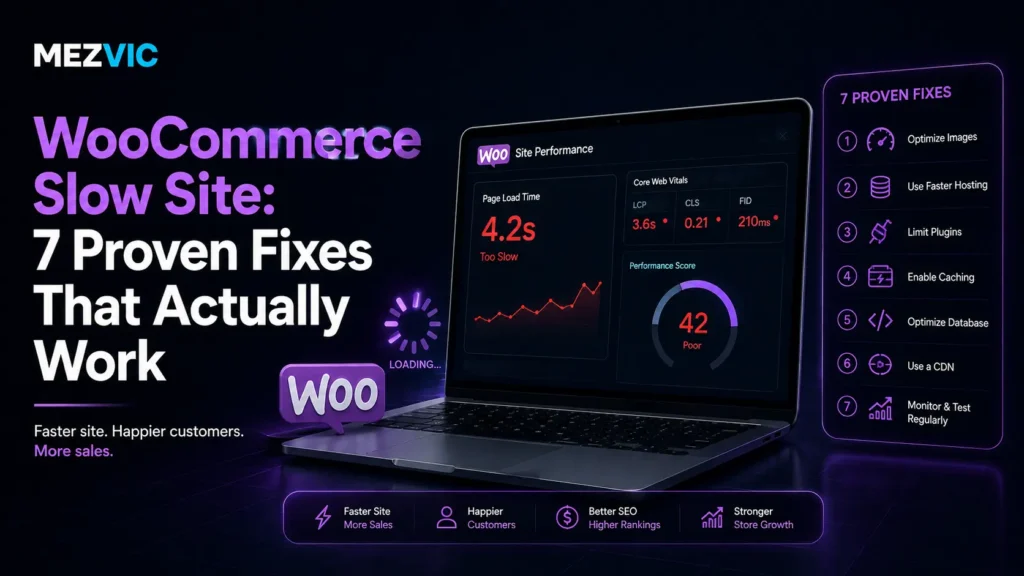
Below are seven fixes for a WooCommerce slow site, in the order that gives you the most speed for the least risk.
In this guide, you will learn:
- The exact speed targets Google measures you against
- Why WooCommerce is harder to cache than a normal WordPress site
- The three database tables that quietly grow forever
- One request that fires on every single page for no reason
- Where six seconds of load time actually goes
Key Takeaways
- Google’s targets are LCP 2.5 seconds or less, INP 200ms or less, CLS 0.1 or less, at the 75th percentile.
- Anything over 4 seconds LCP or 500ms INP is rated poor.
- Cart, checkout and my-account must be excluded from page caching, so those pages need different tactics.
- Cart fragments fire an uncached request on every page, including pages with no cart on them.
- High-Performance Order Storage moves orders out of
wp_postsinto four dedicated tables. - HPOS is on by default for new installs from WooCommerce 8.2 onwards, and older stores must migrate manually.
- WooCommerce publishes no speed percentage for HPOS, so treat any blog quoting one with suspicion.
- The
wp_optionsautoload data loads on every request, so bloat there costs you everywhere. - Action Scheduler and session tables grow indefinitely on a busy store unless something trims them.
- Object caching helps WooCommerce far more than a static site, because so much is generated per visitor.
- Most stores can reach roughly 2 seconds without a rebuild. Server response is usually the biggest single slice.
- Fix hosting and the database before you touch a single image.
What Counts as Slow, Officially
Before fixing anything, know the numbers you are being marked against. Google publishes these Core Web Vitals thresholds and they are not negotiable.
Google’s Core Web Vitals thresholds
Measured at the 75th percentile of real page loads, mobile and desktop scored separately. Three quarters of your visitors have to be inside the green band.
Thresholds from Google’s own documentation on LCP, INP and CLS. Band widths are illustrative, since the poor band has no upper limit.
That callout is worth sitting with for a second.
There is no partial credit above the line. Going from 11 seconds to 4.1 is enormous work for zero change in rating.
Which is exactly why you should aim at the thresholds rather than at “faster”. Faster is a feeling. 2.5 seconds is a number, and it is the only definition of a WooCommerce slow site that Google acts on.
Why WooCommerce Is Harder Than Ordinary WordPress
A blog can be cached once and served to everybody. A shop cannot, and that single fact creates most of what makes a WooCommerce slow site so stubborn.
6 things a shop does that a blog never has to
None of these are bugs. They are the cost of selling things, and each one has its own fix.
is personal
This is why generic WordPress speed advice only takes a store part of the way.
Keep that picture in mind, because it explains why the usual advice runs out.
“Install a caching plugin” is genuinely good advice for a blog. On a shop it fixes your product pages and does almost nothing for the three pages where money changes hands.
Where Six Seconds Actually Goes
Before optimising anything, it helps to see the shape of the problem. Here is a typical WooCommerce slow site, and the same store after the seven fixes below.
Where the load time is spent, before and after
A representative WooCommerce product page. Both bars are drawn to the same scale, so the shrinkage is real rather than cosmetic.
Arithmetic, not a study: 1.8 + 0.9 + 1.6 + 1.4 + 0.5 = 6.2, and 0.4 + 0.3 + 0.6 + 0.4 + 0.2 = 1.9. Your own split will differ, which is exactly why you measure before you optimise.
Notice what is not the biggest slice.
Images get all the attention because they are the easiest thing to talk about. In this store they are 22.6% of the problem, and server response is 29%.
Compressing every image on a store whose database takes 1.8 seconds to answer is like polishing the windows on a car that will not start.
Run your own pages through our bulk PageSpeed checker first and find out what your split actually is.

7 Proven Fixes for a WooCommerce Slow Site
Ordered by impact per hour of work. Do them in sequence and a WooCommerce slow site usually resolves without a rebuild.
1. Fix Server Response Before Anything Else
This is the least fashionable fix and usually the biggest cause of a WooCommerce slow site.
Server response time is how long the server takes to send the first byte. Everything else waits behind it, so a slow one poisons every other metric on the page.
What actually moves it:
- Hosting built for WooCommerce. The cheapest shared plans put hundreds of sites on one machine and your store queues behind them.
- A current PHP version. Each release has been meaningfully faster than the last, and upgrading costs nothing but testing.
- Object caching, usually Redis. This matters far more on a shop than a blog, because so much is generated per visitor rather than served from a file.
- A server near your customers. A store hosted three continents away starts every request with a handicap.
Sellers resist this one because moving host feels drastic and buying a plugin feels easy. But no plugin can make a slow server fast, and most of them add work for it to do.
If your server takes over a second to respond, stop reading the rest of this list and fix that instead. It is the whole game.
The same principle applies to any platform, not just WooCommerce. Our approach to website speed optimisation always starts at the server for exactly this reason.
2. Cache Everything Except the Three Pages You Cannot
Page caching saves a finished copy of a page and serves that instead of rebuilding it. It is the single biggest win available to most sites, and the first thing to check on any WooCommerce slow site.
On a shop there is a catch, and getting it wrong is worse than not caching at all.
Cart, checkout and my-account must never be cached. Those pages are different for every visitor. Cache them and somebody eventually sees another customer’s basket, which is a considerably bigger problem than a slow website.
Every serious caching plugin excludes those pages automatically. Verify it anyway, especially if your checkout uses custom page slugs.
The test takes a minute: add something to your cart, open the site in a private window, and confirm the second window shows an empty basket. If it shows your item, stop everything and fix the exclusions.
That leaves your uncacheable pages relying entirely on server speed, which is the second reason fix number one comes first.
Caching rules, redirects and crawl settings all sit in the same layer, and getting them wrong is a technical SEO problem as much as a speed one.
3. Turn Off Cart Fragments Where They Do Nothing
This is the most WooCommerce-specific fix on the list, and the one most likely to surprise you. Cart fragments are a genuinely common cause of a WooCommerce slow site.
Cart fragments are how the little basket counter updates without reloading the page. To do that, WooCommerce fires an AJAX request that deliberately bypasses your cache.
On a product page, fair enough. The problem is that it can fire on pages that have no cart, no basket icon and nothing to update.
Your blog posts. Your about page. Your contact form. Every one of them quietly making an uncached round trip to the database so a counter nobody is looking at stays current.
It is the web development equivalent of leaving the tap running in a room you never enter.
The sane approach: keep fragments on shop, product, cart and checkout pages, and disable them everywhere else. Several performance plugins expose this as a checkbox, and it is a small snippet otherwise.
Do not blanket-disable it without checking your theme. If your basket counter stops updating, customers add items and see nothing happen, which costs more than the milliseconds saved.

4. Move Orders to High-Performance Order Storage
This fix matters most on an older, busier WooCommerce slow site. For years WooCommerce stored every order inside wp_posts and wp_postmeta, the same tables holding your blog posts.
It worked, and it aged badly. A store with 40,000 orders ended up with a posts table full of things that were never posts.
High-Performance Order Storage fixes that properly. WooCommerce moves order data into four dedicated tables: wc_orders, wc_order_addresses, wc_order_operational_data and wc_orders_meta.
WooCommerce describes the benefit as fewer read and write operations and fewer busy tables, which lets stores scale properly.
Worth saying plainly: WooCommerce does not publish a speed percentage for this. Any article promising you a specific number is inventing it. The gain is structural, and it is real, and it is not a figure anyone can quote honestly.
How to switch an existing store:
- Take a full backup. This moves your orders.
- Go to WooCommerce, then Settings, then Advanced, then Features.
- Enable compatibility mode first and let existing orders sync in the background.
- Only switch to HPOS once syncing has finished.
New installations from WooCommerce 8.2 onwards already have it on. Older stores that have upgraded in place often do not, and nobody ever told them.
Check yours. It takes thirty seconds and a surprising number of long-running stores are still on the old storage.
One caution: older extensions may not be HPOS-compatible. That is what compatibility mode is for, and it is why this is a job for a staging site rather than a Friday afternoon. Proper WooCommerce maintenance means testing this sort of change before it reaches customers.
5. Clean the Three Tables That Grow Forever
Every WooCommerce store accumulates database weight it will never use again, and it is a slow, invisible route to a WooCommerce slow site. Three places do most of the damage.
| Where | What piles up | Why it hurts |
|---|---|---|
wp_options autoload | Settings from plugins you deleted years ago | Loaded on every single request, logged in or not |
wp_actionscheduler_actions | Completed background jobs, kept indefinitely | Grows fastest on the busiest stores, exactly when you can least afford it |
wp_woocommerce_sessions | A row per visitor, including bots | A traffic spike leaves a table full of sessions nobody will return to |
The autoload row is the one worth understanding, because it is uniquely expensive.
Anything marked to autoload is fetched on every page load, whether the page needs it or not. Uninstall a plugin badly and its settings stay there forever, being loaded, being ignored, being loaded again.
Multiply that by every plugin you have ever tried and the number gets embarrassing.
Action Scheduler is the other quiet one. It runs WooCommerce’s background work, and it keeps a record of completed jobs. A busy store generates thousands a week, and unless something trims them the table simply keeps growing.
Set a recurring cleanup rather than doing this once. A store cleaned in January and forgotten is a store back where it started by June.

6. Stop Loading Everything on Every Page
WordPress plugins load their CSS and JavaScript site-wide by default, whether the current page uses them or not. On a WooCommerce slow site this is usually where the render-blocking weight comes from.
Your reviews plugin loads on the contact page. Your booking form loads on every blog post. Your slider loads on pages with no slider.
Individually each file is small. Twenty of them is a second of render-blocking work on a page that needed none of it.
Work through it in this order:
- Delete rather than deactivate. Deactivated plugins still leave rows behind, and you are never going back to that one.
- Load assets conditionally so each plugin only loads where it is used. Several performance plugins do this with a per-page toggle.
- Defer non-critical JavaScript so it stops holding up first paint.
- Audit your theme honestly. A page builder on every product page is often the single heaviest thing on the site.
That last point is uncomfortable and worth saying anyway. If your theme needs three plugins to function and loads a megabyte of CSS to display a product, no amount of optimisation will rescue it.
At some point the honest answer is a lighter build rather than more tuning, which is a development decision rather than a plugin decision.
7. Fix Images Properly, Not Just Compression
Last on the list deliberately, because it is where most people start when facing a WooCommerce slow site and it is rarely the biggest slice.
That said, product images are usually your largest contentful paint element, so they decide the metric Google cares most about.
- Serve modern formats. WebP is dramatically smaller than the JPEGs most catalogues are still built from.
- Size them correctly. A 4,000 pixel photo displayed at 600 pixels wastes the difference on every load.
- Never lazy-load the main product image. Lazy loading the LCP element delays the exact thing being measured.
- Always set width and height. Missing dimensions cause layout shift, which is a different metric failing for the same reason.
The third one catches good developers out. Lazy loading is a genuine optimisation applied blindly to the one image that should never have it.
If your LCP is a product photo and it is lazy-loaded, you have optimised your way into a worse score.
Image weight and page structure also feed how well product pages rank in the first place, which is where WooCommerce SEO and performance overlap.
A Realistic Order of Work
Doing all seven at once makes it impossible to know what worked. Do them in this order and measure between each, and your server response time will usually improve first.
| Step | Effort | Risk | Typical gain |
|---|---|---|---|
| Page caching, with correct exclusions | Low | Medium if misconfigured | Large |
| Better hosting, PHP and object cache | Medium | Low | Large |
| Database cleanup | Low | Low with a backup | Medium |
| Cart fragments | Low | Low | Medium |
| Images and formats | Medium | Low | Medium |
| Conditional asset loading | Medium | Medium | Medium |
| Migrate to HPOS | Medium | Medium, test on staging | Grows with order count |
That last instruction sounds fussy and saves genuine confusion. Server load varies through the day, so a test at 3am and another at 8pm are not comparable.
And measure real visitors, not just lab tools. Core Web Vitals are scored on actual page loads at the 75th percentile, which is why a perfect lab score can sit next to a failing report.
If those three metrics are the specific thing failing for you, Core Web Vitals optimisation is the narrower version of this work.
Speed is also not only a ranking question. A faster checkout is a checkout more people finish, which is where conversion work and performance work stop being separate projects.
Frequently Asked Questions
Why is my WooCommerce site so slow?
A WooCommerce slow site is usually caused by server response time, too many plugins loading site-wide, and an uncleaned database, in that order. WooCommerce itself is rarely the cause. Because cart, checkout and account pages cannot be cached, a store depends on raw server speed far more than a blog does.
How fast should a WooCommerce store be?
Aim for Google’s Core Web Vitals thresholds, which define a WooCommerce slow site in practice: LCP of 2.5 seconds or less, INP of 200 milliseconds or less, and CLS of 0.1 or less, measured at the 75th percentile of real visits. Above 4 seconds LCP or 500ms INP is rated poor.
Can I cache the WooCommerce cart and checkout?
No. Cart, checkout and my-account are unique to each visitor and must be excluded from page caching. Caching them risks showing one customer another customer’s basket or details. Test it by adding an item, then loading the site in a private window.
Should I disable WooCommerce cart fragments?
Disable them on pages with no cart function, such as blog posts and contact pages, and keep them on shop, product, cart and checkout pages. Cart fragments make an uncached request on every page they load, which is wasted work where there is no basket to update.
What is High-Performance Order Storage?
It is WooCommerce’s system for storing orders in four dedicated database tables instead of the WordPress posts and postmeta tables. WooCommerce states it means fewer read and write operations and fewer busy tables, letting stores scale further.
Is HPOS enabled by default?
For new installations from WooCommerce 8.2 onwards, yes. Stores created before that and upgraded in place are often still on the old storage. Check under WooCommerce, Settings, Advanced, Features, and migrate with compatibility mode enabled first.
How much faster does HPOS make a store?
WooCommerce does not publish a figure, and neither should anyone else. The documented benefits are structural: fewer read and write operations, fewer busy tables and simpler backups. The benefit grows with your order count rather than being a fixed percentage.
How many plugins is too many for WooCommerce?
There is no magic number, because one badly built plugin can cost more than twenty lean ones. What matters is how much each loads on pages that do not use it. Audit by weight and by where assets load, not by count.
Does a CDN fix a slow WooCommerce site?
Partly. A CDN will not fix a WooCommerce slow site on its own, though it speeds up images, CSS and JavaScript by serving them closer to the visitor. It does not fix slow server response on uncacheable pages like checkout, so it complements better hosting rather than replacing it.
Why does my PageSpeed score look fine but the site feels slow?
Lab tools test one page under ideal conditions, while Core Web Vitals are scored from real visits at the 75th percentile, which is why server response time on uncached pages matters so much. Lab tools also usually test a cached page, whereas your customers spend their time on the uncached cart and checkout.
Will cleaning the database break my store?
It can, which is why you take a full backup first and work on staging where possible. Removing expired transients and old completed scheduled actions is low risk. Deleting rows you do not recognise is not.
Should I switch away from my page builder?
Only if it is genuinely the bottleneck, which you can establish by measuring rather than assuming. Rebuilding templates is expensive and disruptive. Do the six cheaper fixes first, and if the store is still slow with a heavy builder on every product page, the answer is a lighter build.
The Bottom Line
A WooCommerce slow site is almost always a stack problem rather than a WooCommerce problem.
Start where the time actually goes. Server response time first, caching second with the three exclusions verified, then the database, then the assets, and images last rather than first.
Measure between each step, on the same page, at the same time of day. Otherwise you are guessing with extra confidence.
And be honest about the target. Google does not grade on effort, only on whether three quarters of your visitors got a page in under 2.5 seconds.
Most stores get there without a rebuild. The ones that cannot usually already know which plugin or theme is to blame, and have been avoiding the conversation.
Either way, a WooCommerce slow site is a solvable engineering problem rather than a permanent condition, and the order you tackle it in decides how long it takes.
Want us to find where your seconds are going? Book a free 30 minute call and we will run the audit with you. If you would rather hand it over, WooCommerce speed optimisation is exactly the work described above.