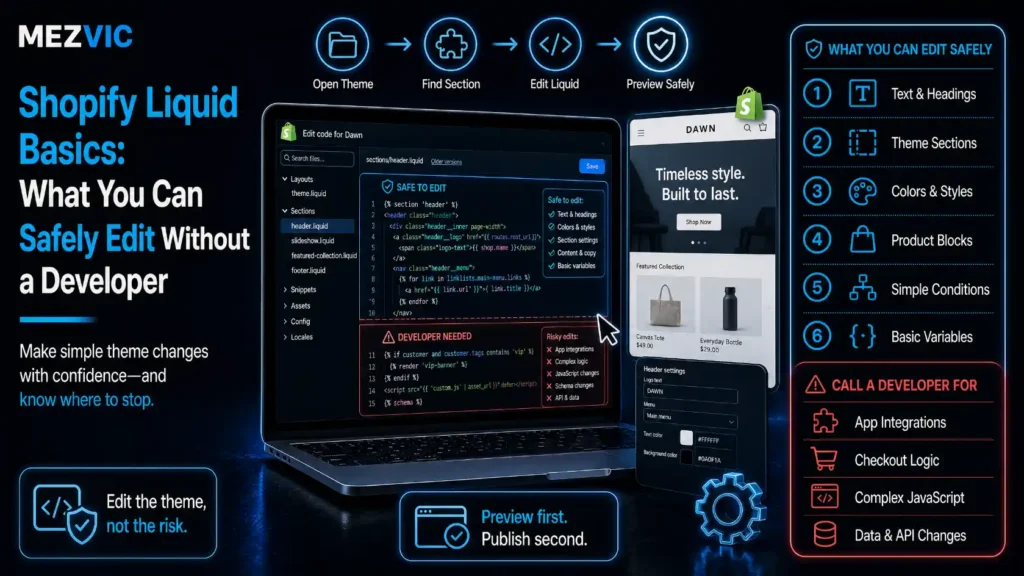
How much of your Shopify theme can you actually edit yourself?
More than you think. And also, almost certainly not the file you were about to open.
Shopify Liquid looks like code, which makes people either avoid it entirely or treat it like a text document. Both go badly.
We edit client themes most weeks, and the split is consistent: about eight in ten requests are safe to do yourself in ten minutes, and the other two will quietly cost you a weekend. If you are still choosing between a stock theme and something bespoke, that decision comes first and we covered it in theme versus custom build.
Here is where the line sits.
Key Takeaways
- Shopify Liquid is a template language Shopify created and open sourced. It fills a fixed template with the data for whatever is being viewed.
- It does exactly three things: objects output data, tags add logic, filters modify output.
{{ }}outputs something.{% %}is an instruction. Shopify’s words: the text inside{% %}is “an instruction, not content to render”.- Filters chain with the pipe character and are applied from left to right, so order changes the result.
- Shopify’s own rule: only edit theme code if you cannot achieve the change with the theme editor or an app.
- The single most expensive fact here: if your code changes are incompatible with a theme update, all your code changes are removed in the updated copy.
- Duplicate the theme first. Shopify lists this as a recommended preparation task, and it takes about fifteen seconds.
- Timeline restores one file at a time. It cannot restore a whole theme, cannot recover deleted files, and its history is finite.
- Editing text, labels and simple conditions inside a section or snippet is low risk. Editing
theme.liquidaffects every page on the store. - You can only edit a paid theme’s code after you have purchased it, trials included.
- Objects are available globally, in specific templates, or through a parent object, with checkout.liquid and Liquid asset files excluded from global access.
- Notification emails, Shopify Flow, order printer and packing slip templates use different Liquid variations that the theme reference does not cover.
- Theme Check runs in the code editor and flags errors as you type. Use it rather than saving and hoping.
What Is Shopify Liquid, and Why Is It in Every Theme File?
Shopify Liquid is a template language. It lets one file serve thousands of pages.
You write a single product template containing the layout, the image position and the price styling. Liquid drops in the right product depending on which one the visitor opened.
That is the whole idea. One template, many outputs. It is also why a small change to one theme file can appear on thousands of pages at once, which is the trap in how Shopify generates URLs you never built.
Shopify created Liquid and released it as an open source project, so the core language also runs outside Shopify. The version in your theme extends it with objects specific to stores.
What Do Liquid Objects, Tags and Filters Each Do?
Objects output data. Tags add logic. Filters modify what comes out.
Almost everything you will ever want to change is one of those three, and they look different enough to tell apart at a glance.
How to read a line of Liquid
The two delimiter shapes, with every part labelled.
Object, property and filter naming follows Shopify’s own Liquid reference.
The delimiters are the tell.
Double curly braces mean something is being printed to the page. Curly brace percent means something is being decided, and Shopify is explicit that the text inside is an instruction rather than content to render.
Filters sit inside an output, after a pipe character.
{{ product.title }}
→ Health potion
{{ product.title | upcase }}
→ HEALTH POTION
{{ product.title | upcase | remove: ‘HEALTH’ }}
→ POTION
Read that last one carefully, because it contains the mistake everyone makes once.
Multiple filters apply from left to right. The text was uppercased first, so removing 'Health' would have matched nothing and removing 'HEALTH' works. Swap the order and you get a different result.
Objects reach their data with dot notation, and they are not all available everywhere.
Where each kind of object is available
| Access | Where it works | What it means for you |
|---|---|---|
| Globally | Any Liquid file, excluding checkout.liquid and Liquid asset files | Things like shop and settings can be used anywhere |
| In templates | Specific templates and their sections or blocks | The product object exists on a product template, not on your homepage |
| Through a parent | Returned as a property of another object | Inside a collection loop, each product comes from the collection |
This is why a snippet that works on one template renders blank on another.
A blank output is almost always a scope problem, not a syntax problem. The object simply does not exist where you called it. This is the single most common question we get from store owners learning Shopify Liquid, and it is also why day-to-day store management is easier once you can read a theme file.
Which Theme Files Are Safe to Edit Yourself?
The ones with the smallest blast radius.
A Shopify theme nests. Knowing where a file sits in that nesting tells you how many pages your edit will reach, which is the only risk measure that matters.
Where a file sits decides how much it can break
The four levels of a Shopify theme, drawn as containment.
File names follow the common convention in modern themes. Yours may differ, the nesting will not.
Work from the inside out.
A snippet edited badly breaks the places that render it. A layout edited badly breaks the entire store, including checkout entry points, and it does it on every device at once. Broken layouts are also a fast route to a store that stops converting without any obvious cause.
What to edit yourself, and what to hand over
| File or change | Verdict | Why |
|---|---|---|
| Static text inside a section | Safe | Affects one area, reversible in seconds, visible immediately |
| Adding a filter to an existing output | Safe | Worst case the output looks wrong, nothing breaks |
| A simple if condition around existing markup | Safe with care | Forget the endif and the page stops rendering, but Theme Check catches it |
| CSS in the theme stylesheet | Safe with care | Cosmetic and reversible, but easy to affect more than you meant |
| Editing a snippet used in many places | Check first | Search the theme for its render tag before changing anything |
| theme.liquid or the layout | Hand over | Every page on the store depends on it |
| Anything touching cart or checkout logic | Hand over | Failures here cost revenue directly and silently |
| JSON template and settings files | Hand over | One trailing comma takes the template out entirely |
If a change appears in the theme editor as a setting, use the setting. It survives theme updates and code does not.
That last line is the whole argument, and Shopify makes it before you get anywhere near the code editor. The layout file is also where your canonical tags live, which is a good example of why a single careless edit there can quietly change how the whole store is indexed.
Step #1: Duplicate the Theme Before You Touch Anything
Fifteen seconds, and it is the difference between a mistake and an incident.
Shopify lists duplicating your theme as a recommended preparation task, precisely so you can discard your changes and start again.
People skip it because the edit feels small. The edit is always small. That is not the part that goes wrong. The same discipline applies to any theme code work you commission, which is part of what you are paying for in Shopify development cost.
Two more things belong in the same minute. Confirm you have actually purchased the theme, because code editing is only available after purchase and a trial will block you. And check what level of support you are entitled to before you need it, because theme code sits outside most support boundaries and a technical audit is often cheaper than diagnosing it yourself.

Step #2: Try the Theme Editor and Apps First
Not because code is scary, but because settings survive updates.
A change made in the theme editor is stored as configuration. A change made in a Liquid file is stored in a file that the next theme update will overwrite.
So the order is always: theme editor, then an app, then code. Most requests stop at the first step, and the ones that reach code are usually genuinely custom. Reaching for an app has its own cost, because every app you install adds weight to the page.

Step #3: Change One Thing, Save, and Look at the Storefront
One change. Then look.
Batching six edits and saving once is how a five-minute fix turns into an afternoon of bisecting your own work. Liquid errors do not always announce which line caused them.
The safest first edit anyone can make is a piece of static text inside a section. The whole loop is six steps.
- Confirm the duplicate exists. If you skipped Step #1, do it now rather than after something breaks.
- Search the code editor for the visible text. Not the file name, the words themselves.
- Change one thing. One line, one word, one condition. Nothing else in the same save.
- Watch Theme Check before saving. If it is complaining, the storefront will too.
- Save and refresh the storefront, not the editor preview. They are not always the same.
- Check it on a phone. Most theme edits look fine at 1280px and wrong at 375px.
<p>Free shipping on orders over $50</p>
// After, now driven by the actual cart total
{% if cart.total_price >= 5000 %}
<p>Your order qualifies for free shipping</p>
{% else %}
<p>Free shipping on orders over $50</p>
{% endif %}
Two details in there are worth internalising.
Money in Liquid is in cents, so $50 is 5000. Getting that wrong is the most common reason a threshold behaves strangely.
And every opening tag needs its closing tag. An if without an endif does not degrade gracefully, it stops the page rendering. That is the one Shopify Liquid error that takes a storefront down rather than making it look odd.
Step #4: Let Theme Check and Timeline Do the Recovery
The code editor ships with a linter, and most people never notice it.
Theme Check gives immediate feedback as you type, which catches the unclosed tag before you save rather than after the storefront goes blank.
When something does go wrong, Timeline restores a previous version of a file. Read its limits carefully, because people rely on it for things it does not do.
Copy the current contents somewhere safe before restoring. Shopify recommends this explicitly, and it takes one keystroke.
All of which is a long way of saying that the duplicate theme from Step #1 is still your real backup. It is the same reasoning behind taking a full export before any platform migration.
Which Parts of a Storefront Does Each File Control?
Most of the fear around theme code comes from not knowing which file draws the thing you want to change.
Find the file without opening a single one
Seven regions of a product page, mapped to the file type that renders each.
Region names follow a typical product template. The mapping rule holds regardless of theme.
The pattern is consistent across almost every modern theme.
Anything that appears on every single page lives in the layout. Anything that appears on one type of page lives in a section belonging to that template. Anything repeated in several places lives in a snippet. Getting this wrong creates near-duplicate templates, which wastes the crawl budget on a large catalogue.
So the question “which theme file is this in” usually answers itself: look at how many pages the thing appears on. Duplicated markup across templates is worth cleaning up for the same reason it matters in technical SEO.

What Happens to Your Edits When the Theme Updates?
This is the part that turns a working edit into a support ticket six months later.
All of them. Not the conflicting ones.
That reframes every decision in this article. A code change is not permanent in the way a setting is, so it carries a maintenance cost you are agreeing to at the moment you make it.
Three habits keep that cost small.
- Write down every code change in one document, with the file name and what it does. This is the only reliable way to reapply after an update.
- Prefer additions to modifications. A new snippet you created is easier to carry forward than a line rewritten deep inside a theme file.
- Re-check after every theme update, not when a customer reports it. The failure is silent by design.
If the list of changes is getting long, that is the signal you needed a different theme or a proper build, not more edits. At that point the honest comparison is against what a bigger plan actually buys you, and against running the same store on WooCommerce.
Frequently Asked Questions
What is Shopify Liquid?
Shopify Liquid is a template language created by Shopify and released as an open source project. It lets one theme file render thousands of different pages by inserting the right data for whatever is being viewed.
Do I need to know how to code to edit a Shopify theme?
Shopify’s guidance is to edit theme code only if you know HTML and CSS and have a basic understanding of Liquid. Changing static text or adding a filter is approachable without that. Changing logic or layout files is not.
What is the difference between curly braces and curly brace percent in Liquid?
Double curly braces output something to the page. Curly brace percent contains an instruction, and Shopify describes the text inside as an instruction rather than content to render. If you see percent signs, something is being decided rather than printed.
What are Liquid filters and how do they work?
Filters modify the output of an object or variable. You apply one with a pipe character followed by the filter name, and you can chain several. They are applied from left to right, so changing the order changes the result.
Why does my Liquid object output nothing?
Almost always because the object does not exist where you called it. Objects are available globally, within specific templates and their sections, or through a parent object, so a product object on a homepage template simply has no value.
Should I duplicate my Shopify theme before editing code?
Yes. Shopify lists duplicating your theme as a recommended preparation task so that you can discard changes and start again. It takes seconds and it is a far better safety net than the file history.
Will a theme update delete my custom code?
It can. Shopify states that if your code changes are incompatible with a theme update, all your code changes are removed in the updated copy. Keep a written record of every change so it can be reapplied.
Can Timeline restore my whole theme?
No. Timeline restores one existing file at a time, cannot restore an entire theme, and cannot recover deleted theme files. Its history is finite, so older versions may no longer be available.
Can I edit the code of a theme I have not bought?
No. Code editing is only available after you have purchased the theme, and that includes the AI code generator in the theme editor. A trial version of a paid theme has to be purchased first.
Which Shopify theme file is the riskiest to edit?
The layout file, usually theme.liquid, because every page on the store renders through it. A mistake there is site-wide and immediate, unlike a mistake in a section that affects one area.
Does Liquid work the same way in Shopify notification emails?
Not quite. Notification templates, Shopify Flow, order printer templates and packing slip templates use different Liquid variations that the theme reference does not document, so theme filters and objects may not exist there.
How do I find which file contains the text I want to change?
Search the code editor for the visible text itself. Anything you can read on the storefront and that never changes is usually sitting in a theme file as literal text, so search takes you straight to it.
Next Steps
Three things, in this order.
First, duplicate your live theme right now and name the copy with today’s date. You will not do it later, and it is the only step here that cannot be done retroactively.
Second, make one safe edit end to end: find static text in a section, change it, save, refresh. That single loop removes most of the fear.
Third, start the change log today, even if it has one line in it. The next theme update is the moment it pays for itself. Keep it with the rest of your platform documentation, in the same place you would keep notes for a future move off Shopify.
Both references are worth keeping open while you work: Shopify’s Liquid reference and the Help Center guide to editing theme code.
If the change log is already long enough to worry you, send us the list and we will tell you which items belong in a theme and which are asking for a build.